
Mock Midterm
To get you prepared for the midterm and final examinations, 1 point of this Lab is allocated to a successful submission of the Mock Midterm using Safe Exam Browser. Ideally, you should try this on a laptop you can bring to the midterm/exam but you will receive the point regardless of what computer you use, and how much you score in Mock Midterm. It is unnecessary to delay until you have revised the course materials because you can attempt Mock Midterm many times, unlike the actual midterm.
Please also read other important information about the Midterm in the Midterm Quiz Section under the course homepage regarding the
midterm date,
midterm venue,
required/optional equipment to bring, and
differences between the Mock Midterm and the actual Midterm.
Install Safe Exam Browser
Open the course home page using the usual web browser such as Chrome. Click the Mock Midterm link posted under the Midterm Quiz section. You should see the quiz cover page below:
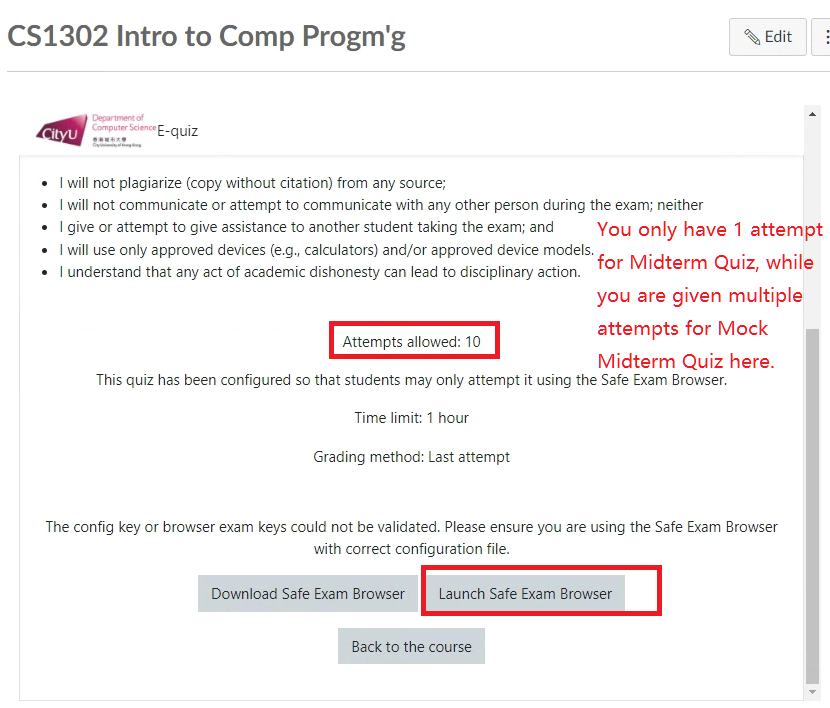
If you have not installed Safe Exam Browser, click Download Safe Exam Browser to download and install the browser on your computer.
After installing Safe Exam Browser, do not run it just yet.
Instead, access the Mock Midterm again with a usual web browser such as Chrome. Click Launch Safe Exam Browser. You should see a dialog box similar to the following. If not, try using a recent version of Chrome.
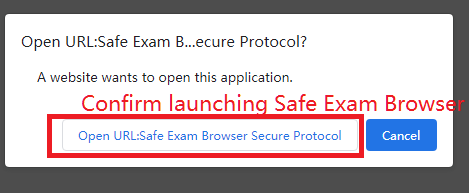
Confirm opening the url to Safe Exam Browser. You should see the login page opened in Safe Exam Browser.
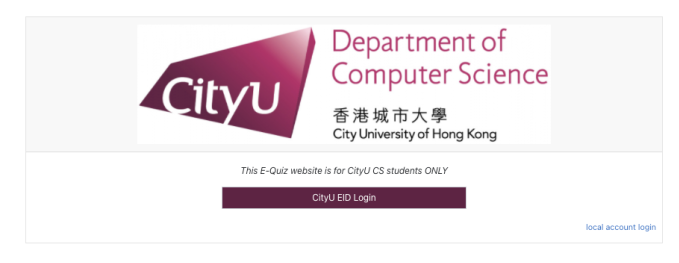
Click CityU EID Login and enter your CityU EID and password to login. You will see the midterm cover page again.
Start Mock Midterm
There should be a button Attempt quiz now on the midterm cover page.
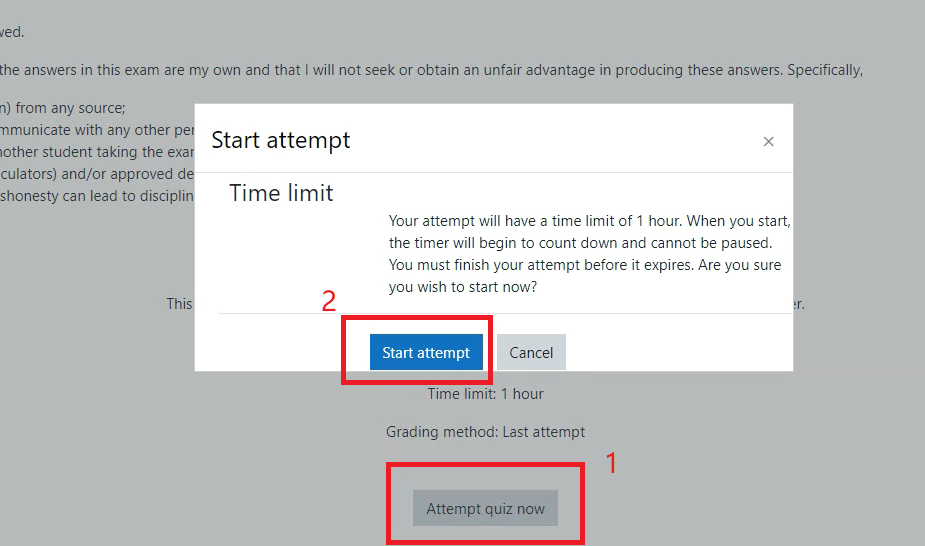
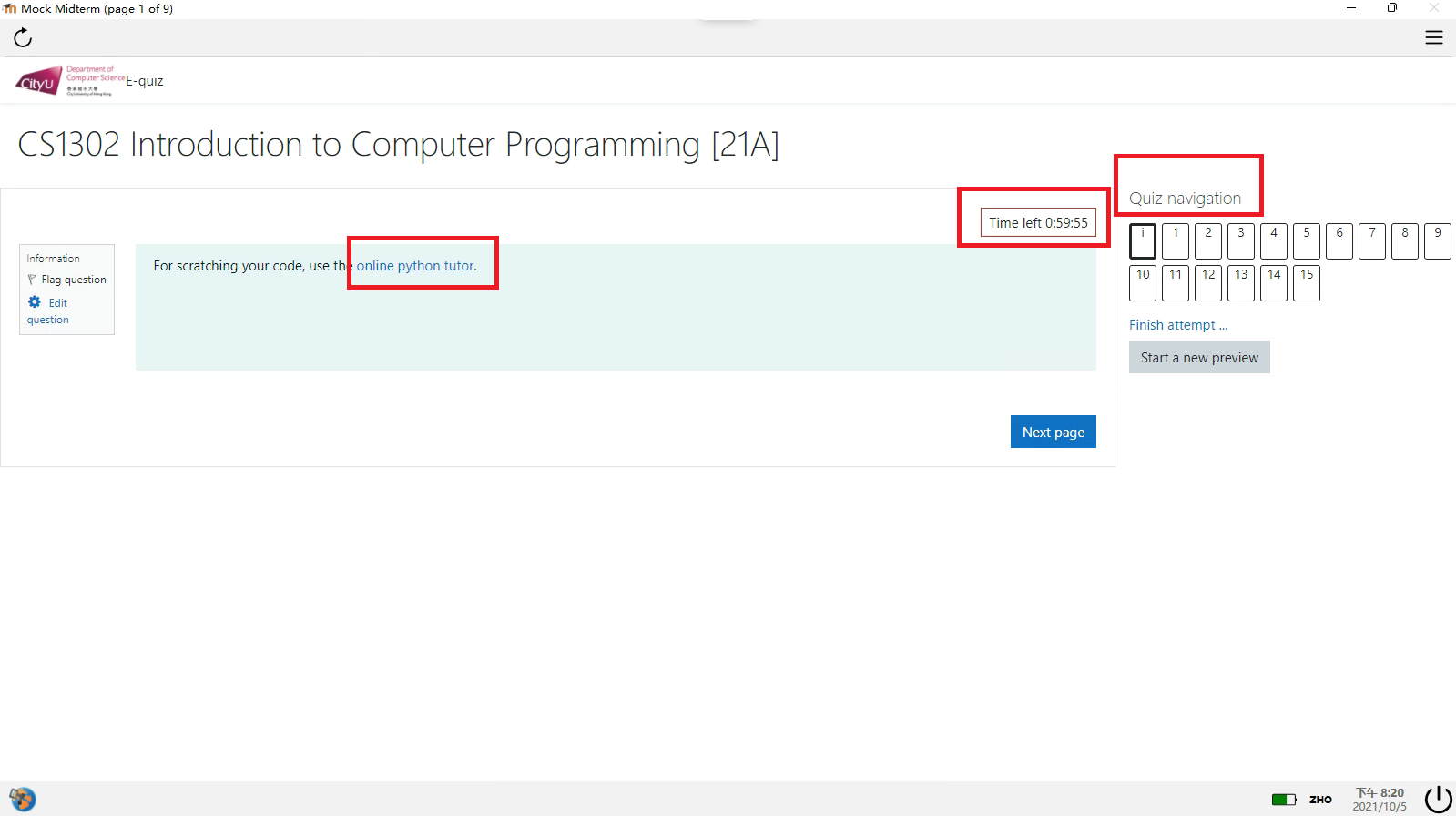
Click Attempt quiz now and click Start attempt to confirm the time limit. You will see all the quiz question numbers listed under Quiz navigation.
Answer questions
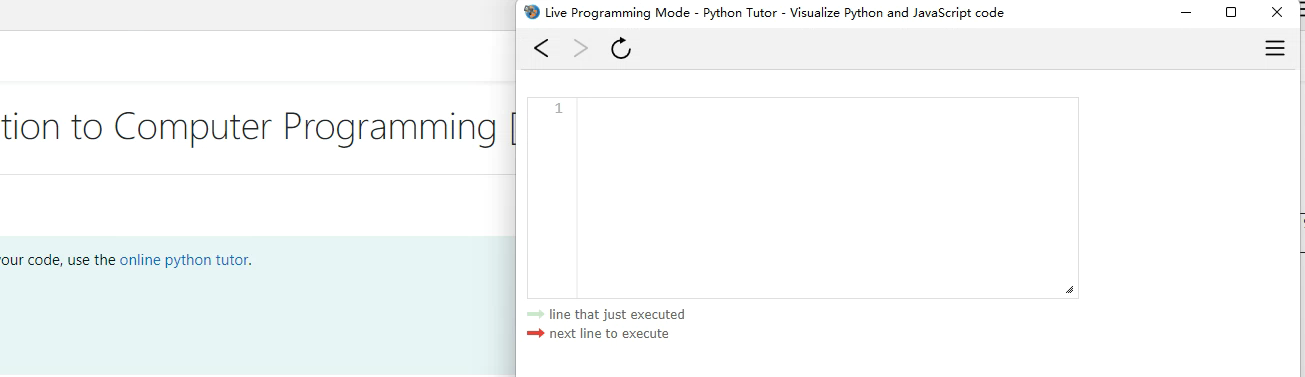
You can click the link online python tutor to open a python interpreter.
In Safe Exam Browser, you can copy and paste your code to the online python tutor to test run without penalty.
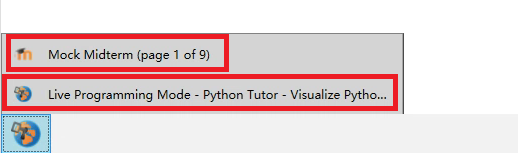
You can switch between the quiz and online python tutor using the menu at the bottom left corner.
You can jump to other questions using Quiz navigation.
There can be multiple questions on one page. You can click
Next Pageto go to the next page.Changing pages is very useful because:
It saves your current answer so you will not loose them when the browser closes.
It can reload the contents if they were not properly loaded due to network issues.

To avoid careless mistakes, you can click
Checkto check your answer.There is a penalty for incorrect answer. E.g., for MC questions, the penalty depends on the number of answers available to discourage random guessing.
As long as the score does drop to 0 for the question, you can re-attempt it and check your answer again. Not checking your answer before submission can be costly.
Submit answers
When time is up, the Mock Midterm Quiz will be submitted automatically.
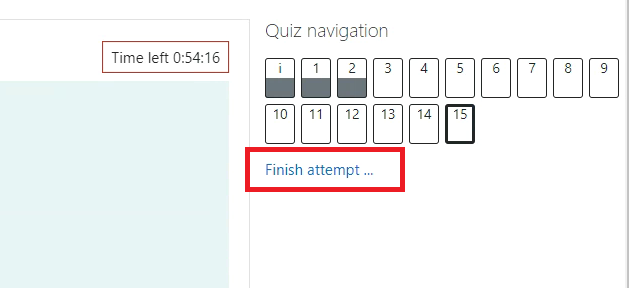
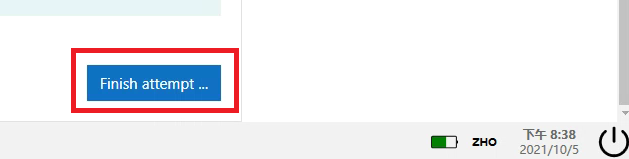
If you want to submit earlier, you can click Finish attempt either in Quiz navigation or at the bottom right of the last page.
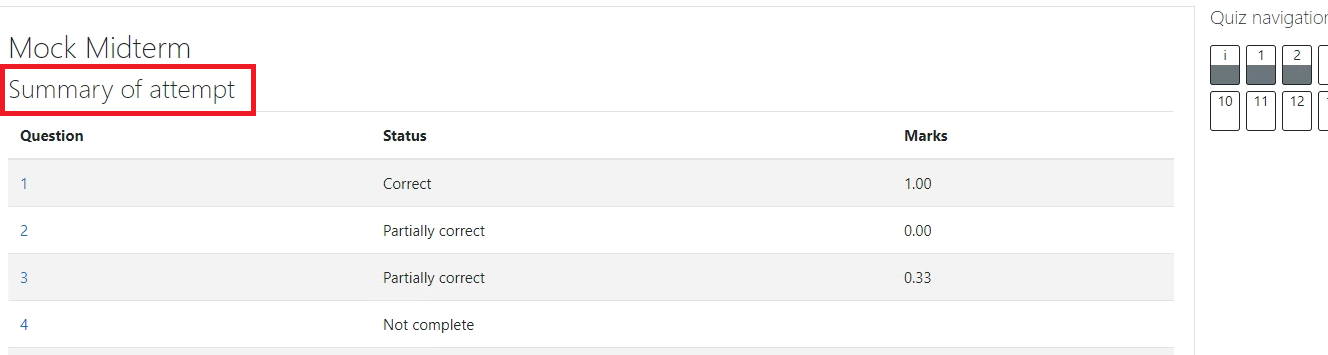
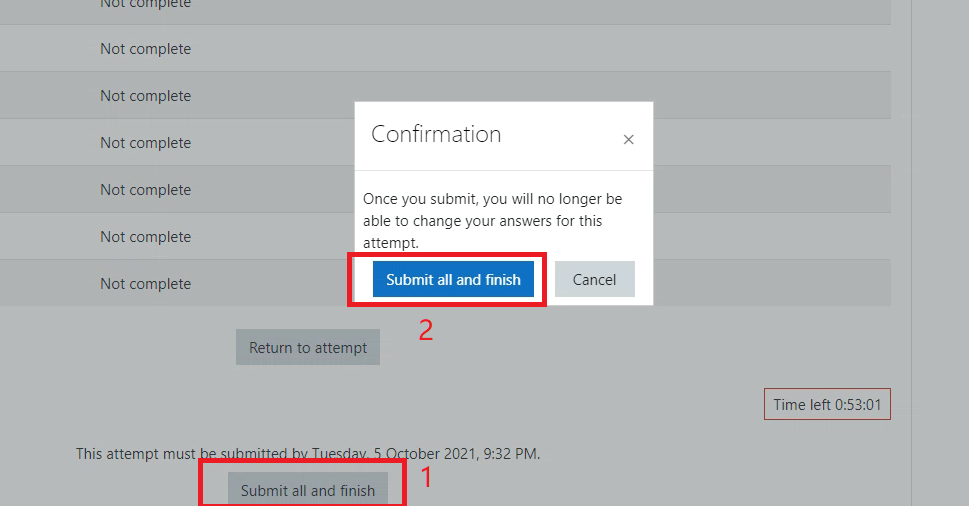
You can see the summary of your attempt. Click Submit all and finish and click again Submit all and finish again to confirm.
You will able to review your score once you submitted your attempt. In the actual Midterm/Exam, however, you will not be able to see your score as manual grading and moderation may be necessary.