
Setup
JupyterHub
How to access the JupyterHub server?
Enter the url of the Jupyterhub server divedeep.cs.cityu.edu.hk in a web browser.
Enter your EID and Password in the fields
UsernameandPasswordrespectively.Click the
Sign inbutton.
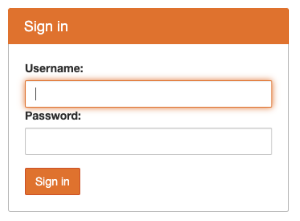
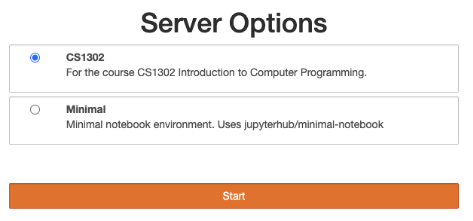
Choose
CS1302as the server option and clickStart.
Note
Minimal is only for trouble-shooting and is insufficient for running the course materials. If you accidentally choose it, you can restart your server after entering the JupyterLab interface as described below.
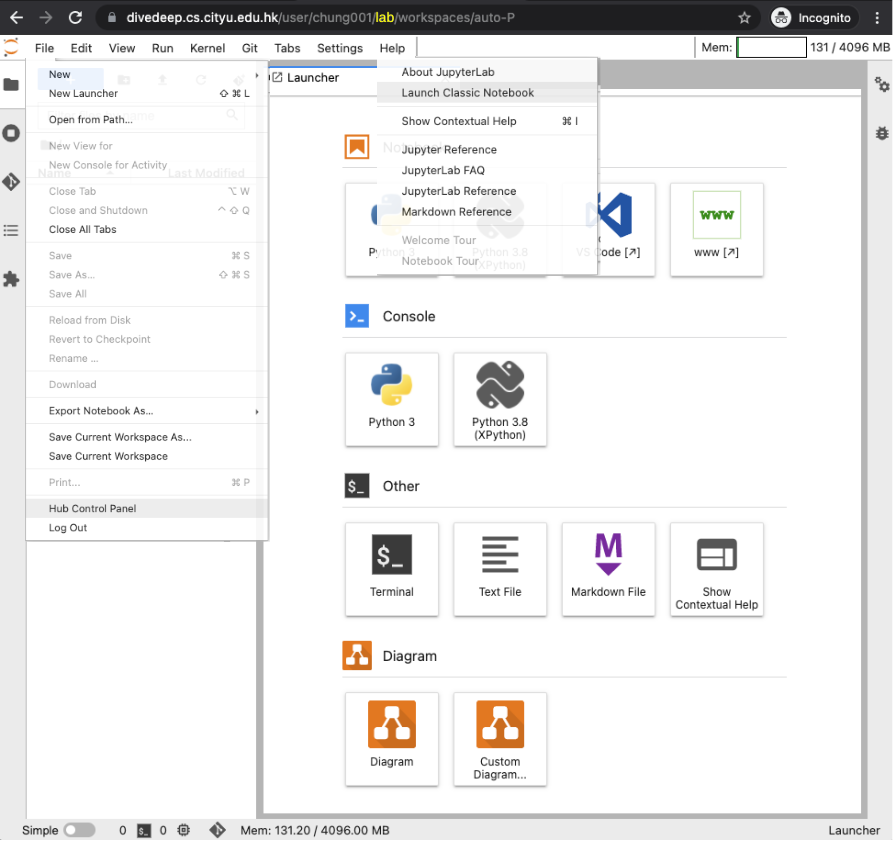
The JupyterLab interface should appear.
Note
To submit homework assignments, you will need to use a different interface:
Help\(\to\)Launch Classic Notebookwill open the classic notebook interface, which is needed for submitting lab assignments. You may alsovisit https://divedeep.cs.cityu.edu.hk/user-redirect/tree or
replace
labin your browser url (indicated above in yellow) bytreecan pressEnter.
Tip
How to troubleshoot in case or error?
Refresh the page, re-login, or clear your browser cache to reset your browser.
Restart your server using the
Hub Control Panelunder theFilemenu (shown above) or visit the hub home
https://divedeep.cs.cityu.edu.hk/hub/home
and clickStop My Serverand thenStart My Server.

Contact your instructor using the contact information on the course homepage.
Jupyter Notebook
How to access course materials?
The recommended way is to follow the links to the lecture/lab notebooks on the course homepage.
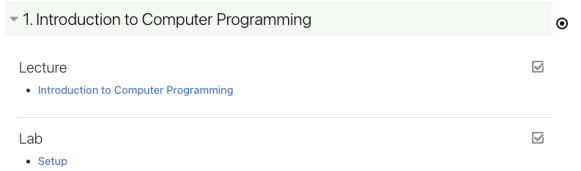
The released notebooks are also compiled into an ebook:
https://www.cs.cityu.edu.hk/~ccha23/cs1302book
which allows you to
preview the notebooks conveniently as webpages,
download the notebooks in PDF or ipynb formats, and
open the notebook on the jupyterhub server.
Important
It is important to open the notebooks using the links on the course homepage as it
git-pull updates/corrections to the notebooks and
merge them with the notebooks stored under
cs1302folder in your home directory butwithout overwriting your changes.
If you open the notebook directly on JupyterHub instead of following the git-pull link, updates will not be pulled, and your notebook may fail to have the updates needed for submission.
If you are interested in how nbgitpuller works, the following is an example of a git-pull link:
How to complete a lab assignment?
Learn how to edit a notebook:
Click
Help\(\to\)Welcome Tourto learn the JupyterLab interface.Click
Help\(\to\)Notebook Tourto learn about the jupyter notebook.Watch the official video tutorial to JupyterLab.
Exercise
In learning a new programming language, the first program to write is often the “Hello, World!” program, which says Hello to the world.
Type the program below and run it with Shift+Enter. Use tab or 4 spaces to indent.
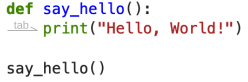
def say_hello():
    # YOUR CODE HERE
    raise NotImplementedError()

say_hello()
Attention
We often ask you to write your answer/code in a special cells with unique but hidden id number.
Make sure you provide your answers only to the answer cells that says
YOUR CODE HEREor “YOUR ANSWER HERE”.For coding exercises, you should also remove
raise NotImplementedError().Do not clone or duplicate the answer cells.
In order to check your work thoroughly, there will be both visible and hidden test cases. The following is a visible test you can run to check your answer:
# Run this test cell right after running your "Hello, World!" program.
import io
import sys

old_stdout, sys.stdout = sys.stdout, io.StringIO()
say_hello()
printed = sys.stdout.getvalue()
sys.stdout = old_stdout
assert printed == "Hello, World!\n"
The test returns an assertion error only if your program does not print the correct message.
Tip
You can repeatedly modify your solution and run the test cell until your solution passes the test. There is no mark penalty in failing the test before submission.
The test cell often uses more tools that what you might have learned. You are not required to know how to write the test cell but you should try to understand the error messages from a failed test.
To assess your solution thoroughly, we will run new tests hidden from you after you have submitted your notebook. There is no partial credit for a partially correct solution that works for the visible test but fails for the hidden test. Therefore, you should ensure your solution works in general rather than just the visible tests.
If you open the same notebook multiple times in different browser windows, be careful in making changes in different windows as you may overwrite your own changes.
If your notebook fails to run any code, the Kernel might have died. You can restart the kernel with
Kernel\(\to\)Restart. If restarting fails, check your code cells to see if there is any code that breaks the kernel.
How to submit a notebook
Lecture notebooks under the subfolders Lecture*\ need NOT be submitted. You only need to submit the lab notebooks under Lab*\. Although the first Lab (Lab0) does not count towards your final grade, you should still submit it, to get familiar with the procedure.
Attention
Before you submit, make sure everything runs as expected:
Git-pull the notebooks: Follow any one of the link on the course homepage to a notebook, which will git-pull any updates/corrections to (all) your notebooks.
Restart the kernel:
Kernel\(\to\)Restart Kernel...run all cells:
Run\(\to\)Run All Cells
You may submit as many times as you wish before the due date as we collect your latest submission for grading.
No late submission will be collected without valid justifications.
Double check that you have submitted the correct Lab assignment.
You are responsible for recording your submission attempt with a valid timestamp in case of technical issues.
To submit your notebook:
Start the classic notebook interface by choosing
Help\(\to\)Launch Classic Notebook.Go to the
Assignmenttab.Expand the Lab folder and click the
validatebutton next to the notebook(s) to check if all the visible tests pass.Click
Submitto submit your notebook.
Important
Auto-grading often FAILs (after submission) if:
The notebook files are renamed, e.g.,
Setup.ipynbchanged/copied toSetup (Copy).ipynb, or converted to a python scriptSetup.py.An html file exists with the same name as a notebook, e.g.,
Setup.htmlis the default grading feedback file to be generated when gradingSetup.ipynb.The file size is too large, e.g, over
100MB.The notebook is obtained from or shared with another student.
Note
You normally have at least 5 days to work on the lab after your lab session.
You can check the due dates of all the labs from the course homepage.
You may seek help from us or your classmates. However, you must write your own solution and indicate who your collaborators are by including their EIDs in a code cell:
COLLABORATORS = ["xfwong2", "mklee3"]
Tip
In case of error:
Download/backup your existing notebooks,
remove them from the
Lab*folder,click the git-pull links from the course homepage to re-pull the notebooks, and
copy your solutions to the new notebooks.
Running notebook outside Jupyterhub (Optional)
You may also run the course notebooks outside the jupyterhub server and locally on your computer. For details, see the github repo:
https://github.com/ccha23/cs1302jupyter
To submit the assignment, however, you still need to use the jupyterhub server.