
Debugger
Why debuggers?
As a computer programmer, your goal is to write programs which solves some tasks. But sometimes computer programs behave in an unexpected way due to Errors or Bugs. For simple programs, finding errors might be easy. However, for programs consisting many lines of code, finding errors can be very hard.
A Debugger allows us to pause/break the execution of a program at a line, called a breakpoint, we specify. This allows us to find errors more easily.
In this lab, we will learn to use a visual debugger in JupyterLab.
Set breakpoints
To use the Jupyterlab visual debugger, ensure XPython kernel is running:

If you do not see XPython or a circle next to it on the top-right-hand corner, switch to the XPython kernel by clicking the name of the current kernel on the top-right-hand corner.
We will use the following code as an example to set a breakpoint. First, execute the code to see the effect.
msg = "Hello, World!"
print(msg)
Hello, World!
To enter the debug mode, turn on the switch near on top right-hand corner:

The debugging sidebar should slide open. You can also open/close the sidebar by clicking the bug icon on the right.
Exercise
Code cells also looks different in debug mode. What is the difference?

YOUR ANSWER HERE
To set a breakpoint, press the dot that appears as you hover to the left of line number 2. Run the cell to see what happens.
msg = "Hello, World!"
print(msg)
The debugger provides quite a bit of information, organized as follows:
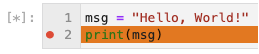
Orange line is the line where the execution is paused.
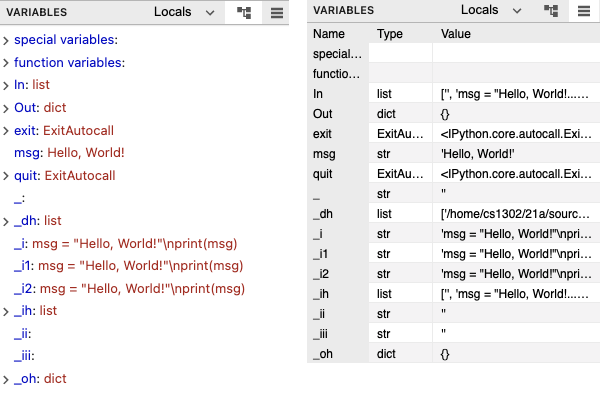
Variables panel shows the current values of different variables.
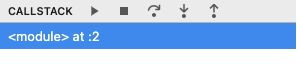
Callstack panel provides a more detailed context of where the execution is paused. It also provides the flow control buttons to resume/stop the execution.
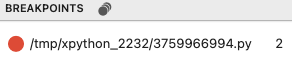
Breakpoints panel shows all the breakpoints of the current debug session.
Source panel highlights the source of the breakpoint at which the execution is currently paused.
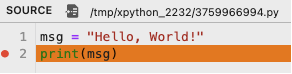
Exercise Explain whether line 1 and 2 are executed. Use the information from the debugger to support your answer.
YOUR ANSWER HERE
Resume execution
To resume/terminate the execution, use the following flow control buttons at the top of the callstack panel:
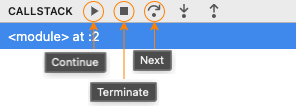
Continue button continues the execution and pause again if it hits a breakpoint.
Terminate button stops the execution.
Next/Step-over button continues the execution of program to the next statement without entering function.
Exercise
What does the following function f(n) computes? Try to set a breakpoint and use the flow control to understand how the program works.
def f(n): # definition of a function
    return n * f(n - 1) if n > 0 else 1


f(3)
6
Hint
Set the breakpoint one at a time but at different locations. If you set your breakpoint at line 5, you should use the Step In button to step into the execution of the function.
YOUR ANSWER HERE
Run temporary code
Sometimes, we want to run temporary code without modifying the current notebook. To do so:
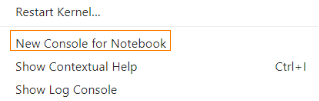
Right click anywhere on a notebook and choose
New Console for Notebook:
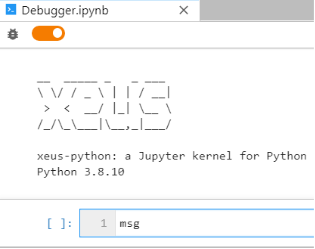
Type some code such as
msginto the console input and run it withShift-Enter:
Tip
You can run
f(n)for different values ofnin the console to understand how the function works.You can set a breakpoint in line 2 of the previous code cell containing
def f(n): ...and runf(3)in the console to pause at the breakpoint. The source code containing the breakpoint will also be shown in the Source panel.You can also set a breakpoint in the console input, say
f(3), and then step into it.While the execution is paused, you can enter a new line of code such as
print(msg)belowf(3)in the console and then continue the execution to run the new line of code.
VS Code interface (Optional)
There are other debuggers in different interfaces. A powerful GUI debugger is available in the vscode interface:
File\(\to\)New Launcher\(\to\)VS Code
Follow the official guide to install the python/jupyter extension and debug a jupyter notebook.